Designing With AI on a budget as an engineer: Google+ChatGPT
Tokens are for code, not for design. I will teach you how to create beautiful marketing materials for Apple, Google, and social media accounts in the correct dimensions and quality at the cost of zero billable tokens.
I fully acknowledge that this is not as good as a professional designer, but it is infinitely better quality and lower time than I, a software engineer, could do on my own without AI. If you don’t believe look at what I did pre-AI, GPT4, and today in the bonuse case study below.
Saigon Watermarks
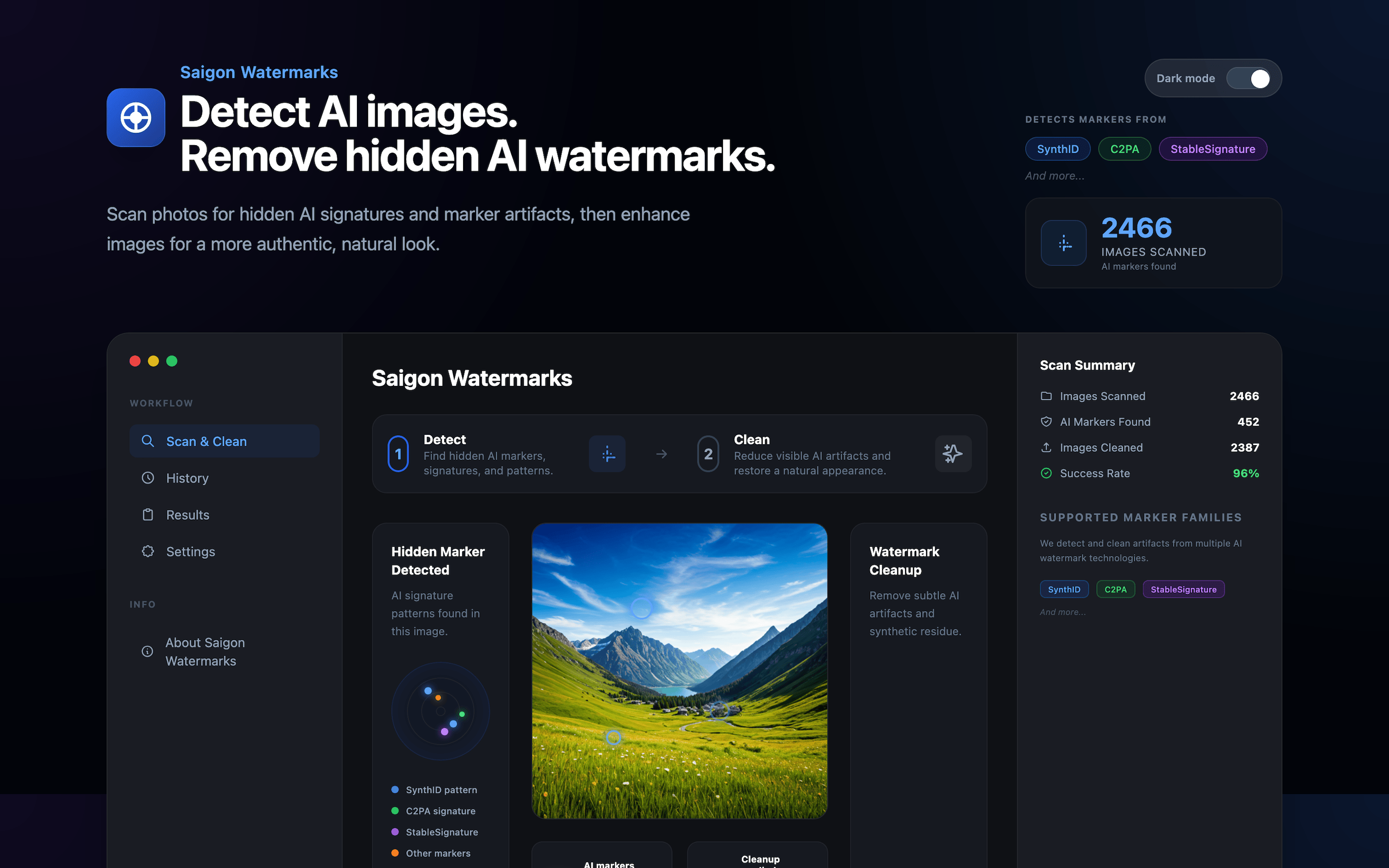
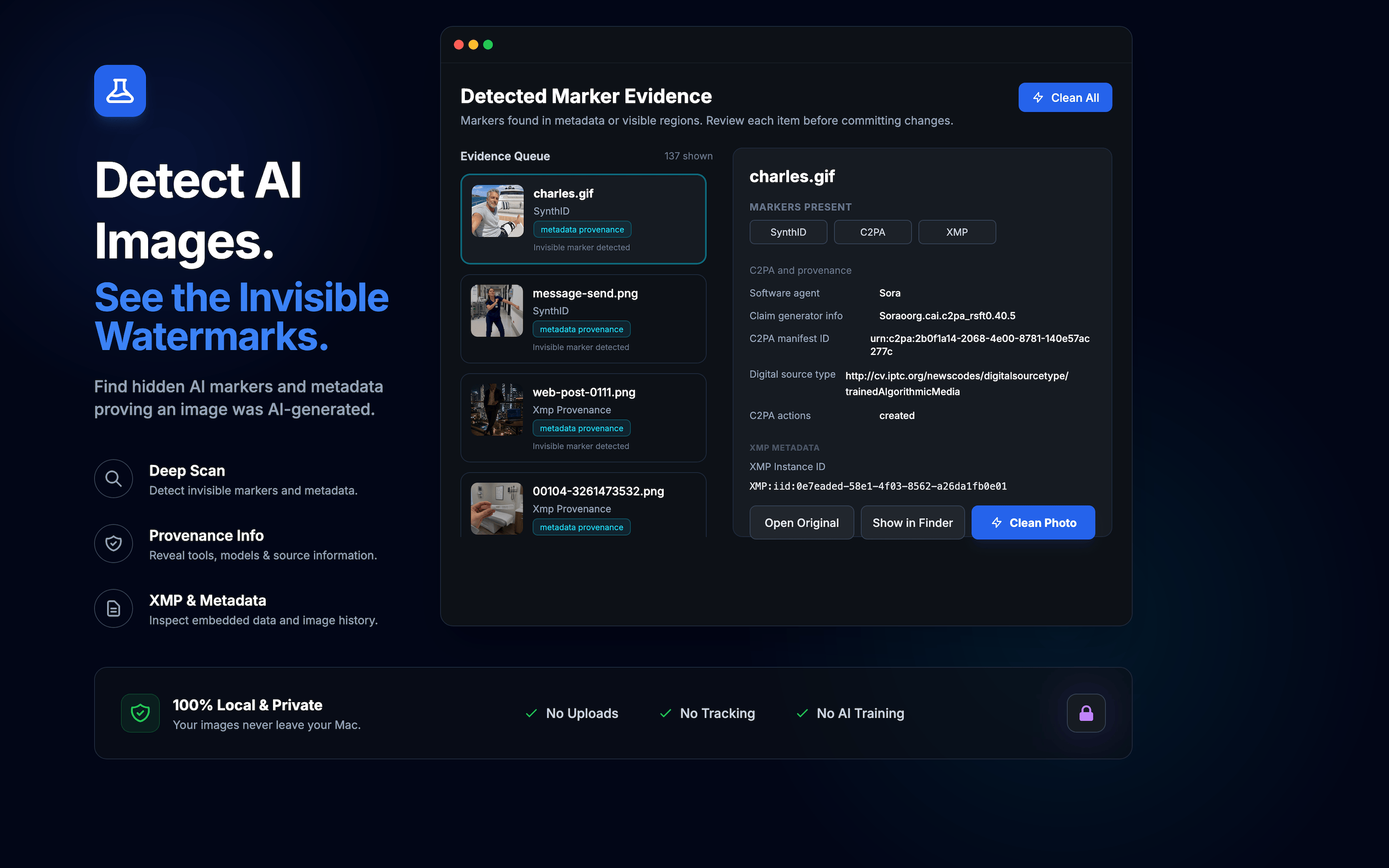
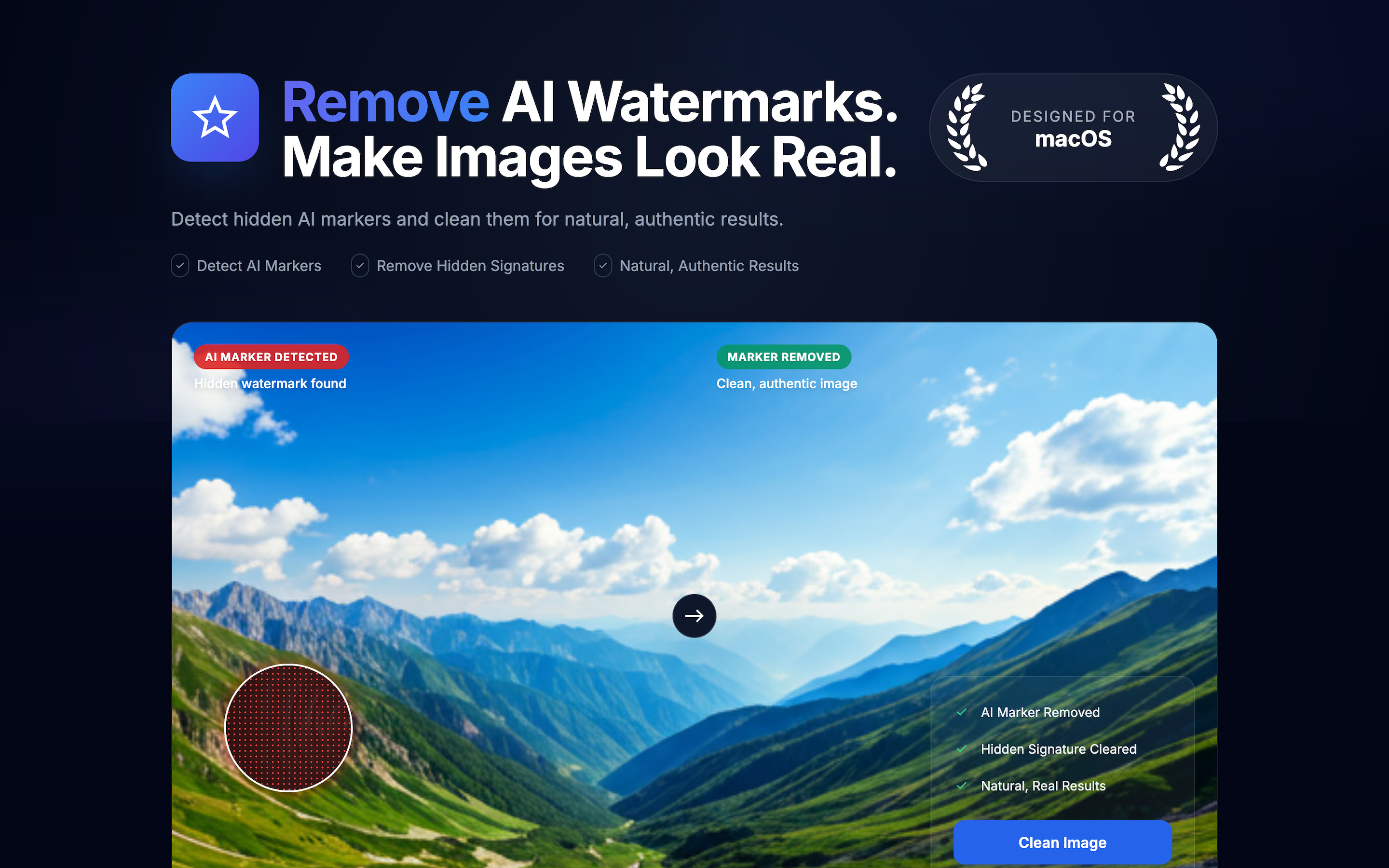
Step one: ask ChatGPT Web to describe list of screenshots.
The example app was going to be a desktop iOS app. I first asked AI to give me six or ten screenshot ideas for how to display the app and the page.
While I already have an idea of which screenshots of the app that I would want to use, I let the AI think a little more freely just in case something’s missing without giving hints to indentify blind spots in my mental model.
It is important to note to use ChatGPT Web, and not any local agent harness (Codex, Claude, etc) that has access to the code base. The marketing materials should be communicate the problem this solves, not explicitly and exclusively your solution. AI has a tendency to include technical terms from the codebase that do not belong in marketing materials.
So, brand new ChatGPT web prompt:
I am building {product name}. The key features are {...}.

Give me 10 ideas for screenshots to include in the MacOS App Store. that will help me sell to my customers.
From those 10 ideas, ask AI to generate a longer prompt describing the content of that page.
write an AI prompt for generating an screenshot image of {...}
Generate the PNG
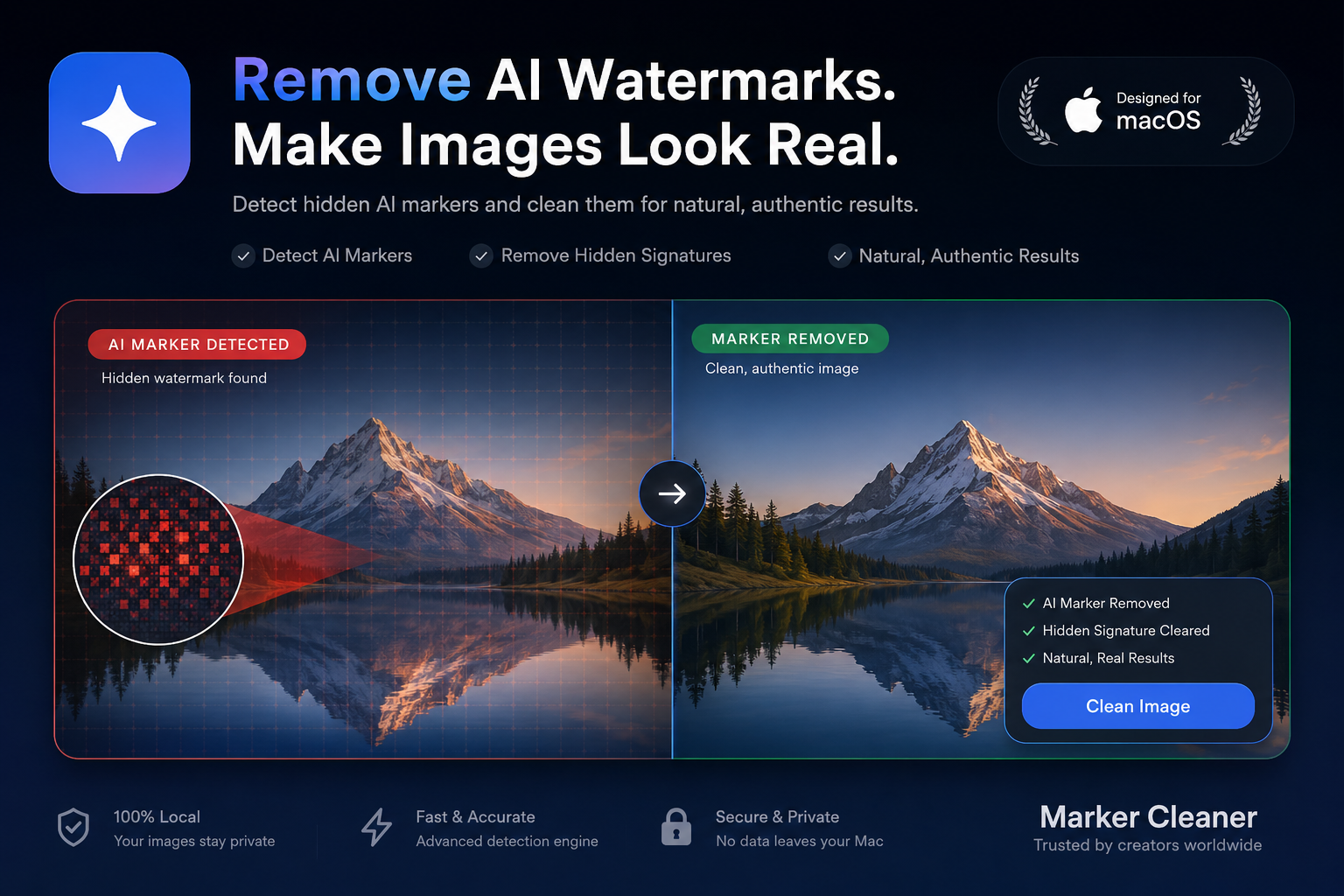
- Paste in the prompt
- Ask ChatGPT Images 2.0 to generate a new picture with the prompt above
- Include the screenshot of the app that this screenshot needs to be talking about
For example, I want to have a screenshot showing of the images for the profile dashboard. AI will incorporate the real screenshot with the marketing text described in the prompt to generate something beautiful. Sometimes I’ll make some corrections with the image generation tool, either asking it to modify the existing image or even better, just regenerating the original image, clean slate, no edits, tends to be more effective.
Once I have these base PNGs for each of the screenshots I want, the problem of these PNGs is that they are the wrong dimensions and are low quailty. We need this to be super crisp and polished and it can’t just be some blurry, shitty AI generated photo.
Converting chatGPT images to high quality marketing materials
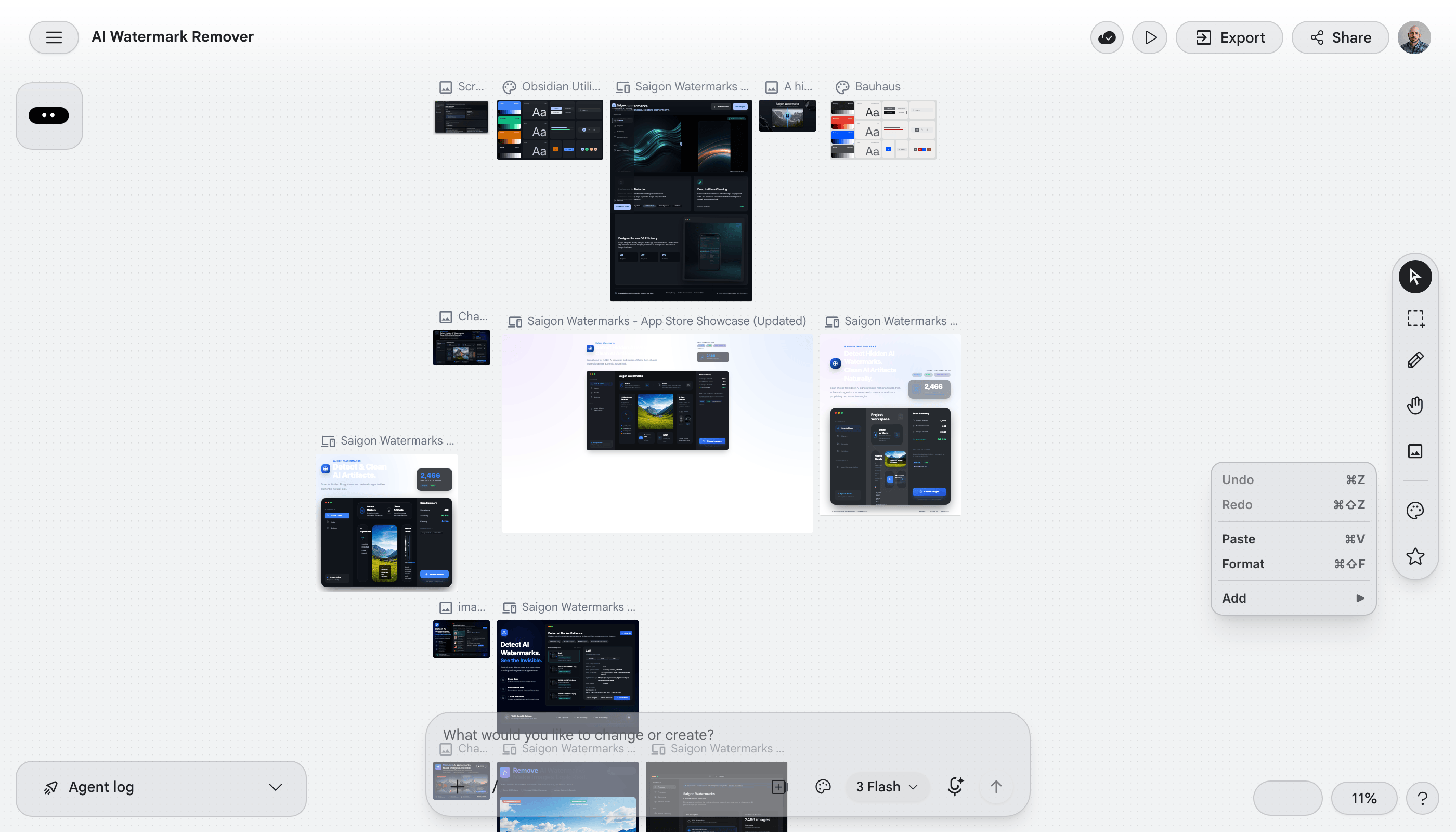
So, the next stage we’re going to do is once we have those three images, we’re going to:
- Go to Google Stich (Google’s Figma competitor) and upload these images into the tool.
_attached screenshot.png_

copy the image as closely as possible exactly this screen.
Generate an HTML page from that image.
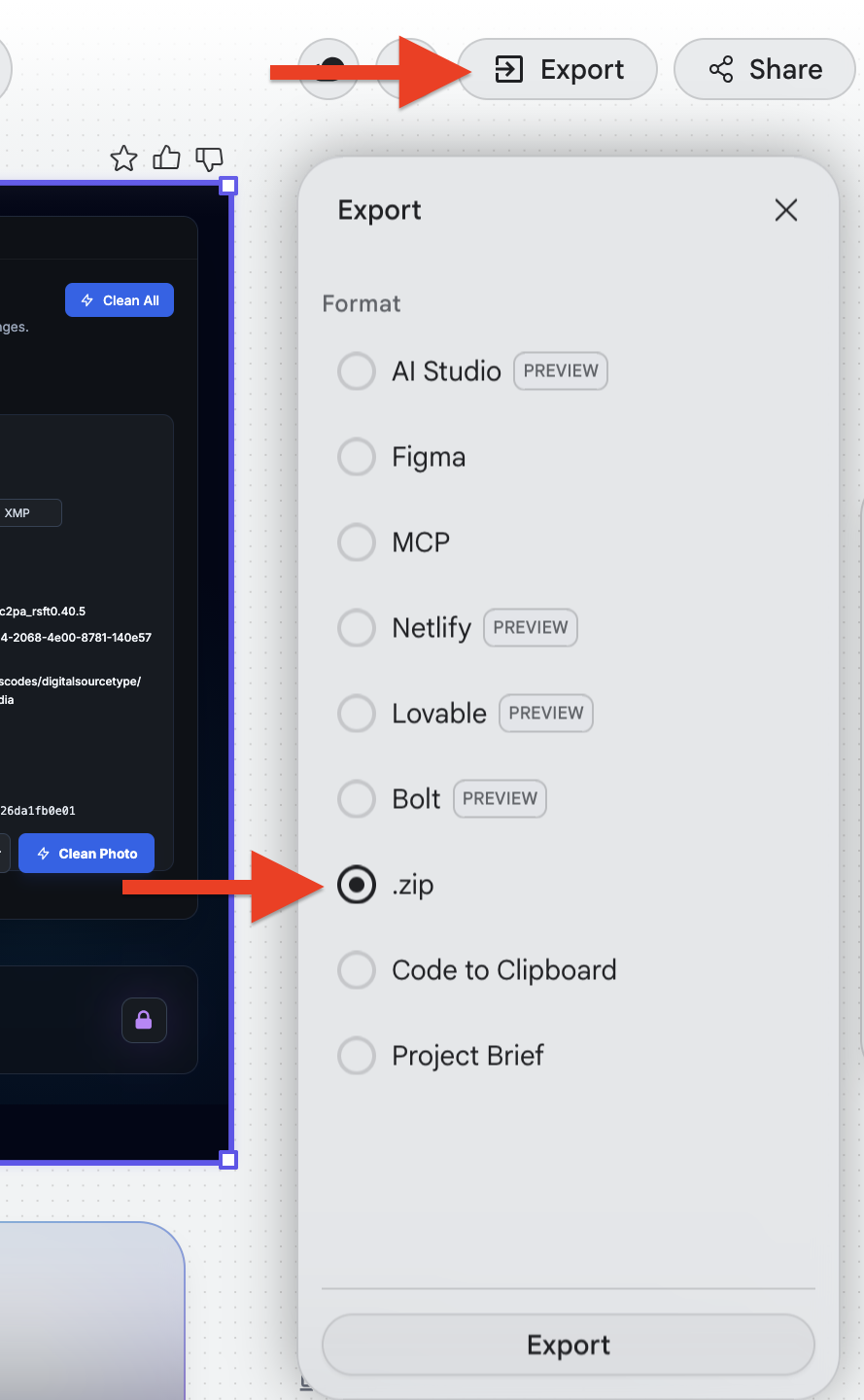
The Google Stich has limited tokens available, so use Google Stich to generate the html and we can tune the html later (either by hand or with Claude, ChatGPT web, etc).
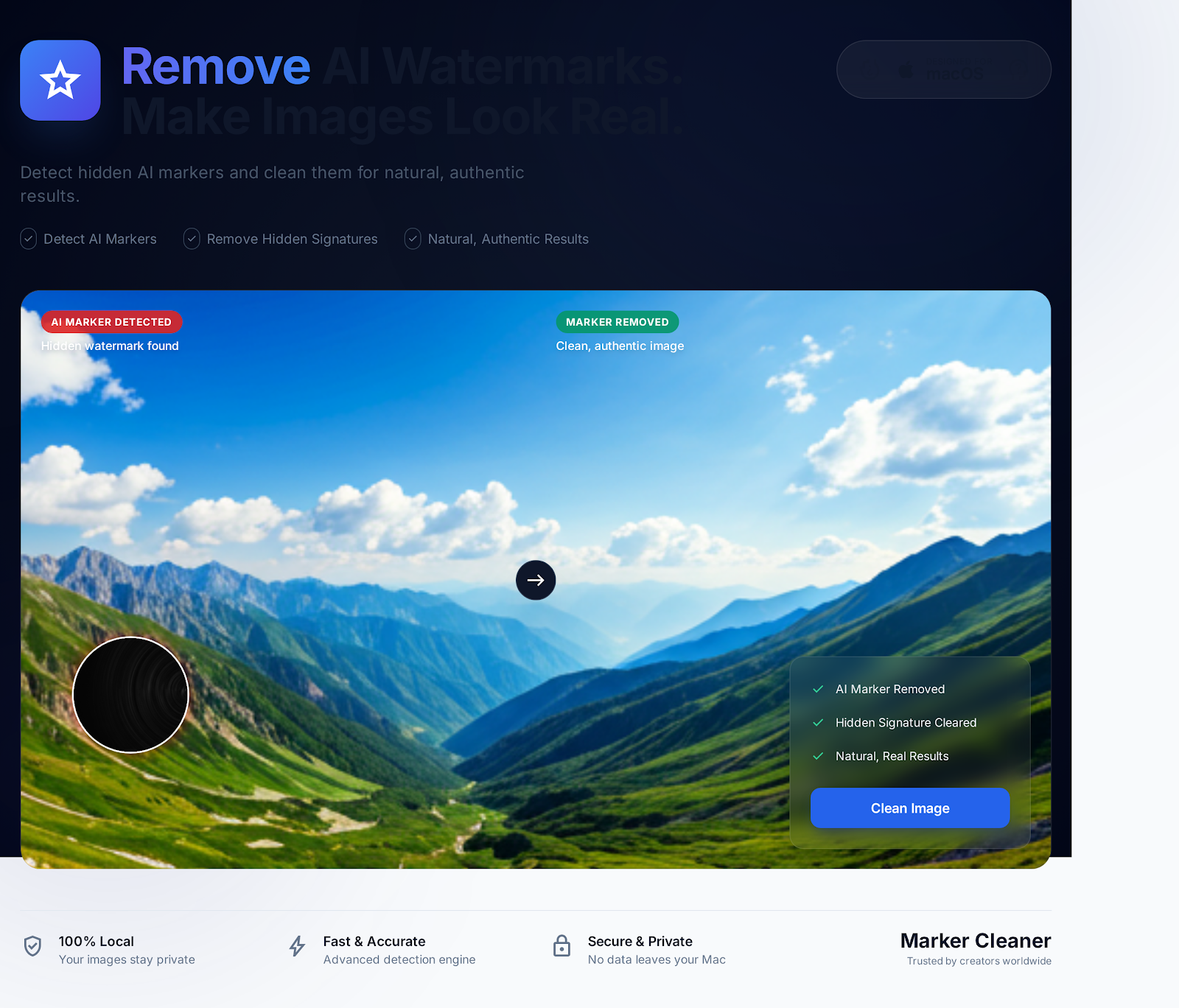
Most of the structure is there, but there are issues with font colors and the wreath just looks terrible.
Next step is manual and AI-assisted editing of the html
Open the .zip file in your favorite text editor. Since this is a simple single file, you can use ChatGPT web (which has unlimited token usage for paid accounts) to make minor adjustments to the html to update copy, styles, etc.
Once you’re super happy with the design. Use Firefox or Chrome to take the screenshot, be sure to either adjust the view window to match the required deminsions or be prepared to crop and resize the final image to match the target.
Final step: screenshot, resize, crop and upload
looks great in HTML in your favorite web browser, take a screenshot of the entire page and use your favorite image editing tool to crop and resize it so it fits the dimensions for each of the images.
Sidequest: Recreating icons
There was an icon that I really liked in the original image that neither Google nor ChatGPT could properly replicate in HTML/SVG. So, what I did was:
- Opened up the original ChatGPT image in an SVG editing tool
- Manually traced over the icon with these vector points
- Exported the SVG and replaced the generated svg with my manually created one.
Now I was able to replicate that icon generated by ChatBT, but in a very precise and colorful and beautiful way. Once you have your page opened up,
Bonus Case study: AvoVietnam
Below you can see the marketing images for the dating app AvoVietnam
Pre-AI
These just look lazy to me. Simple screenshot, Gradient background.
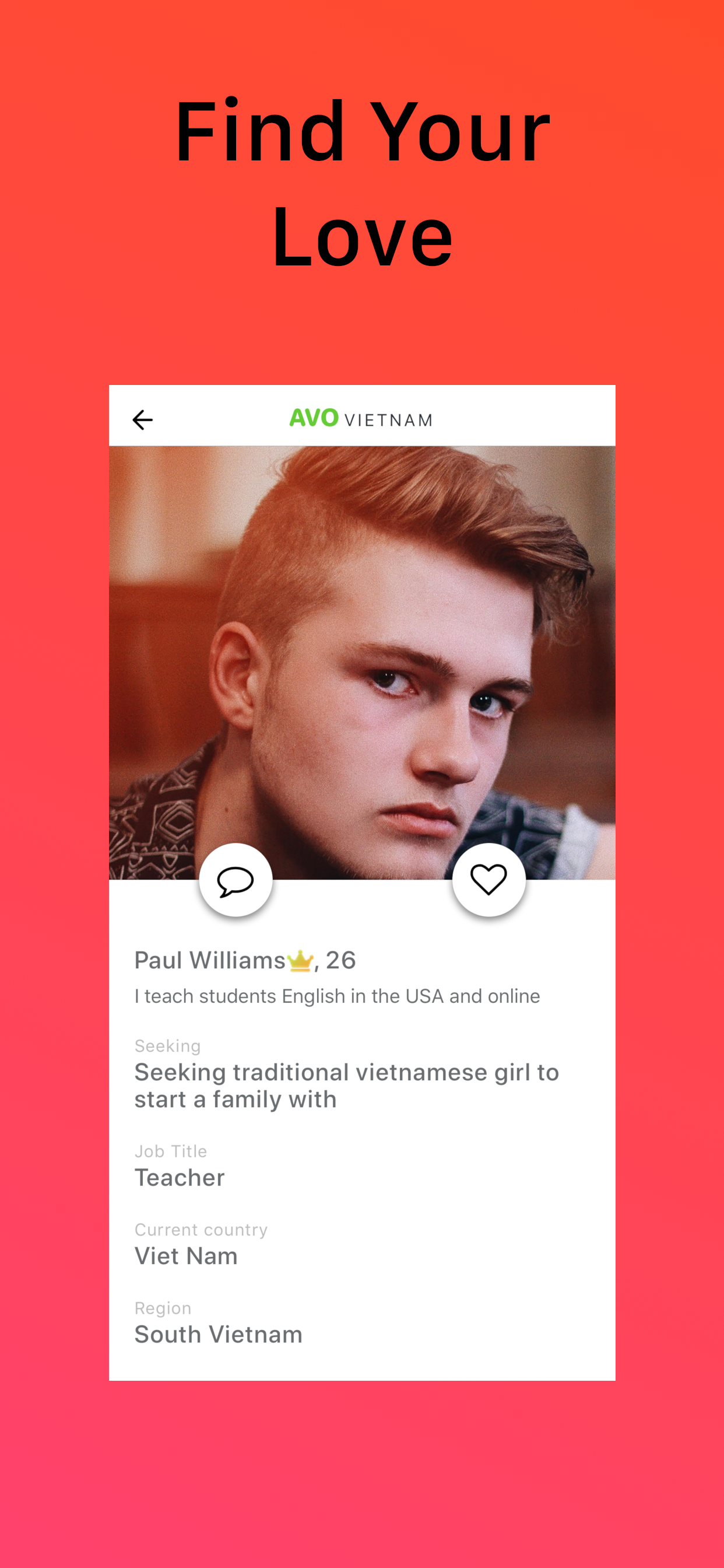
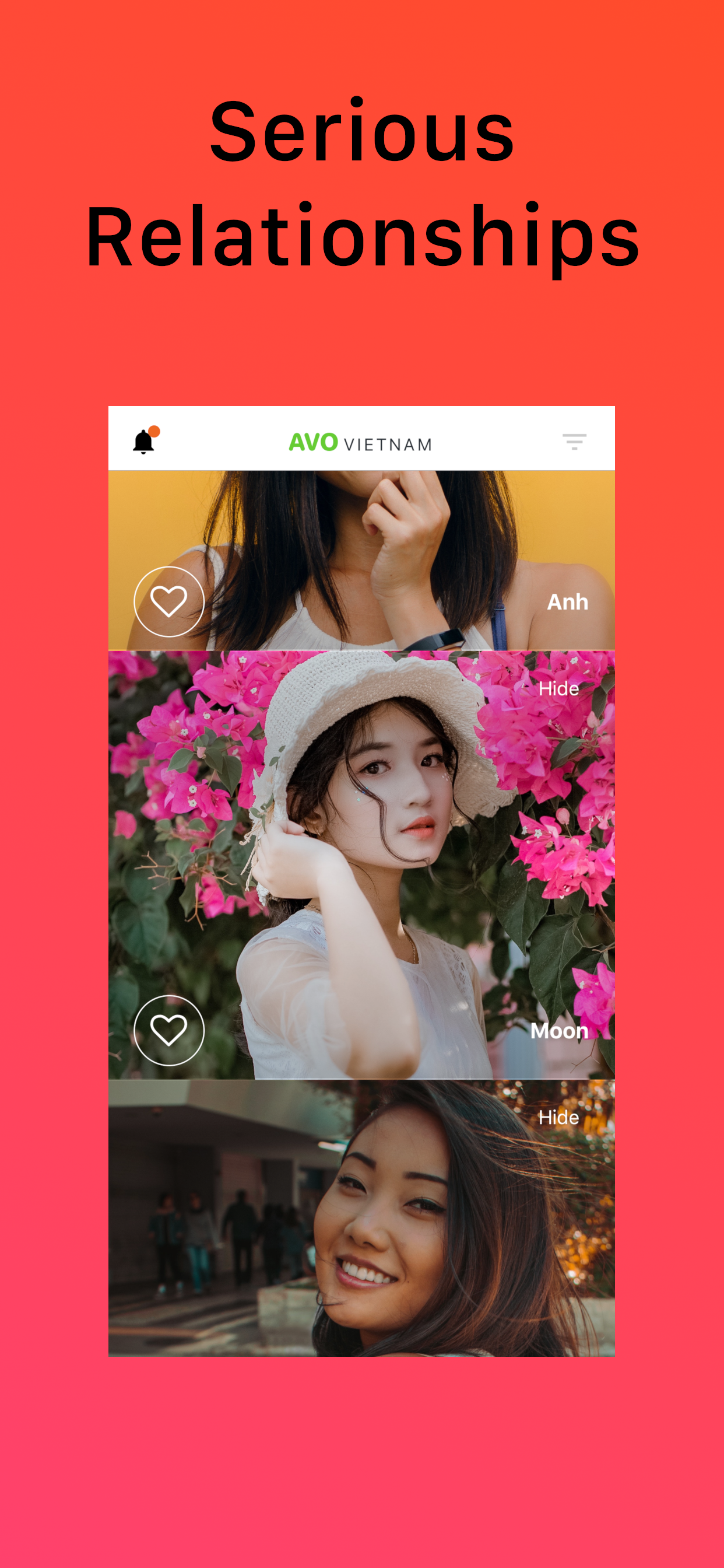
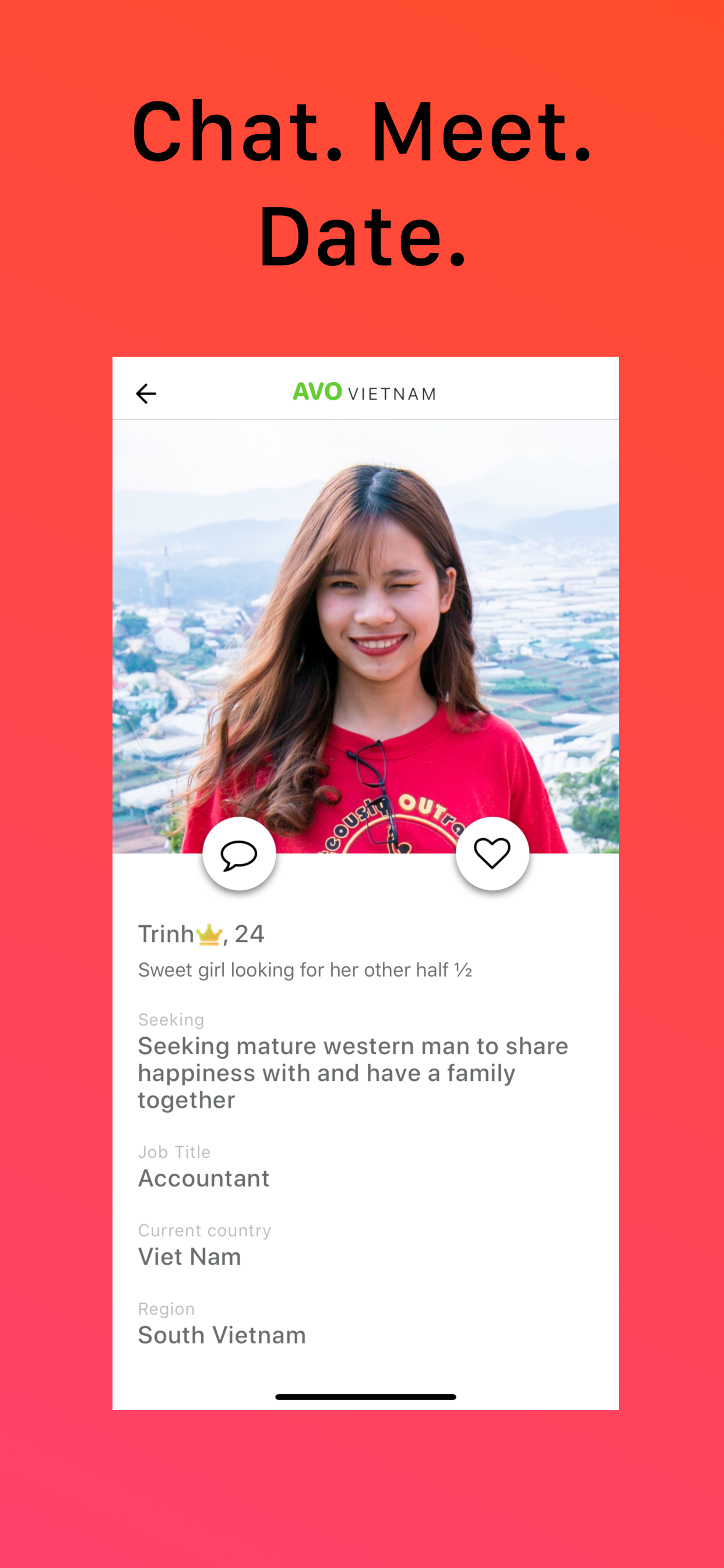
ChatGPT -> HTML
Before ChatGPT had their image generation, I asked chatgpt to make an html template based on an png mockup. Unfortunately, I lost the original images, but this is the output.
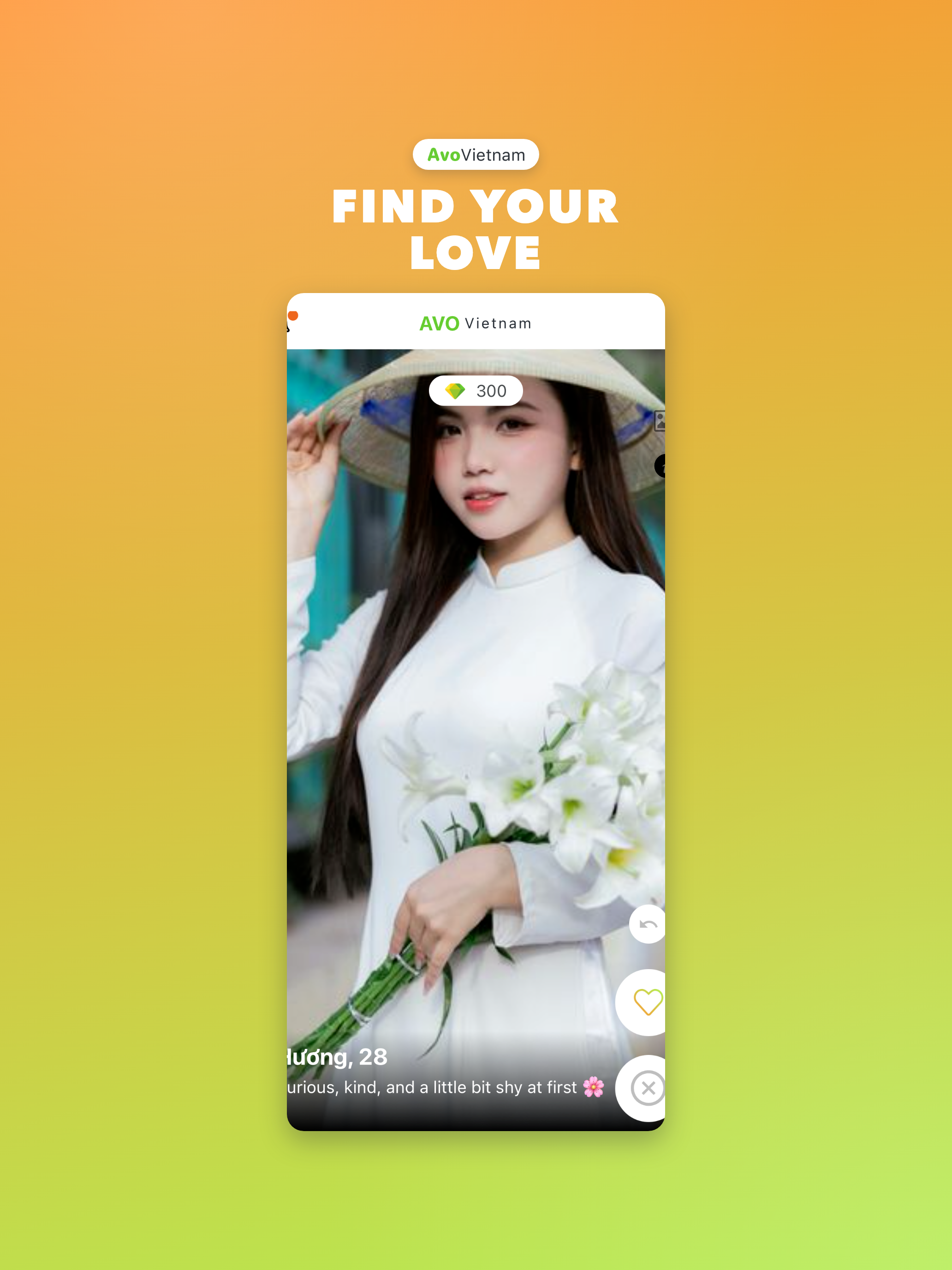
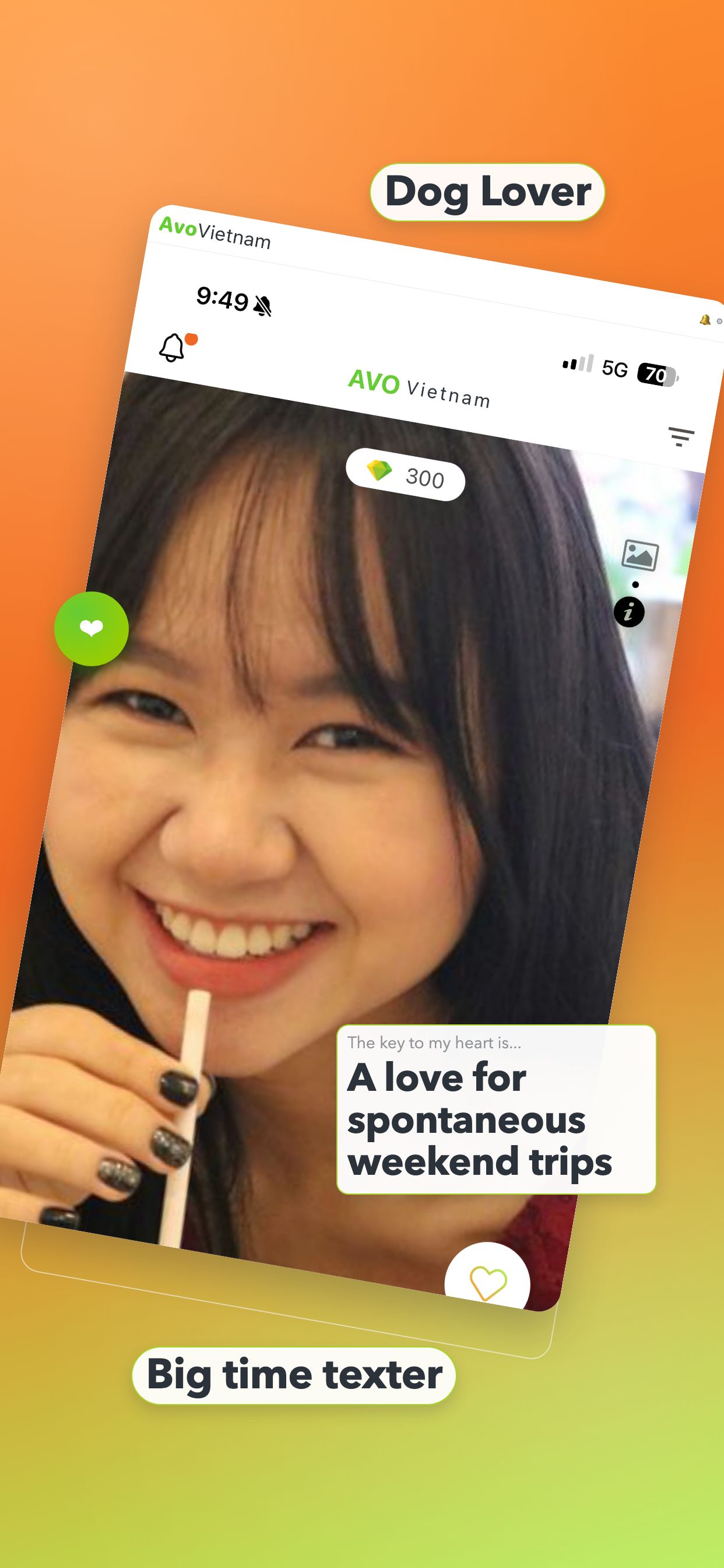
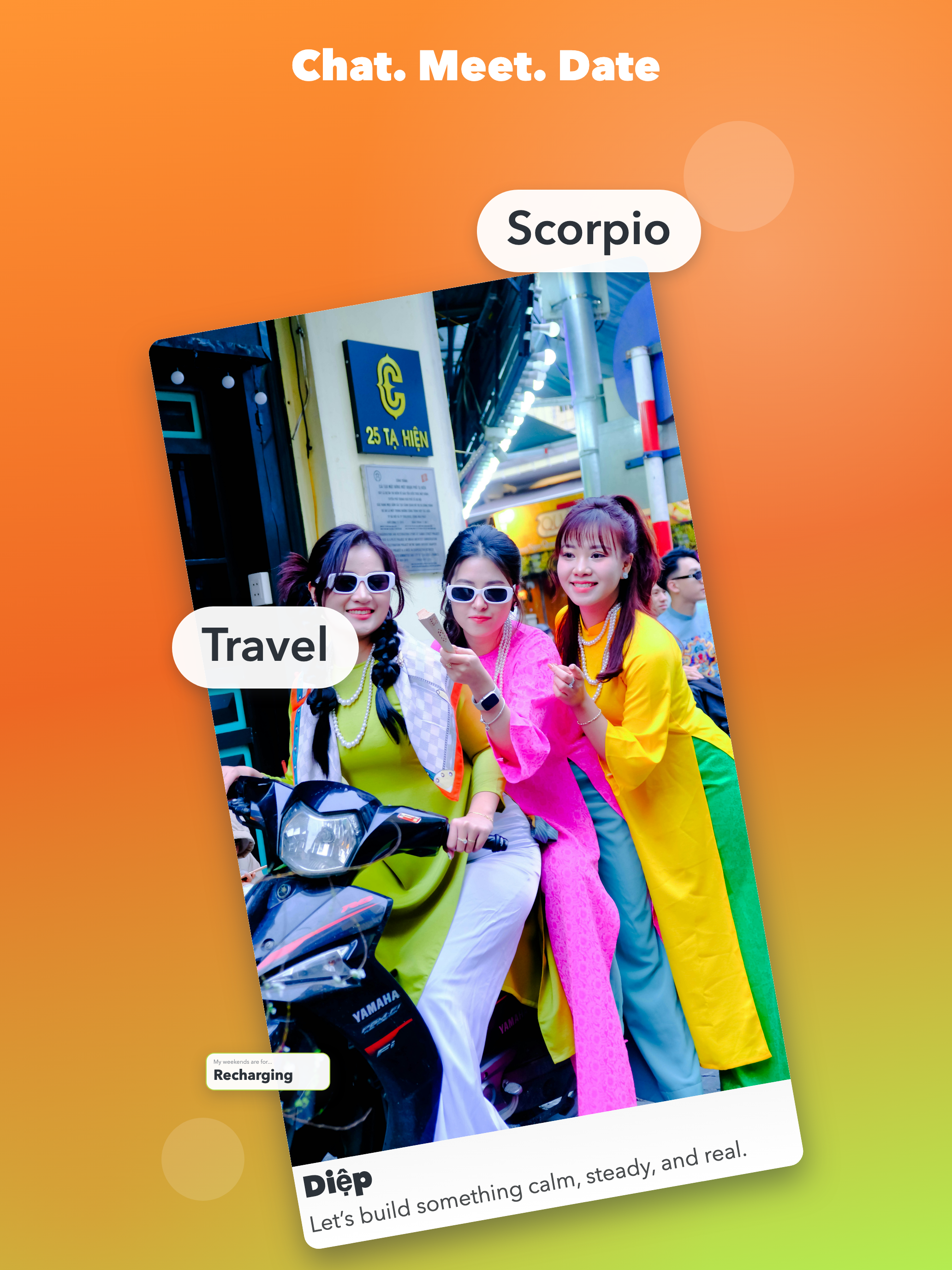
This was created before Google Stich was released. Converting the images to html with Codex (5.3?) resulted in weird font sizes and locations of blobs. I still have this issue with Codex 5.5.
Compared to the Google Stich workflow above, this looks like a high school design student (or a software engineer with no design skills) made it haha.